Your own AI software agency.
Hand it the work and press Start. AI coding agents plan, build, review and test each task, then bring you a pull request ready to merge.
More ideas than hours.
The backlog keeps growing, and every task waits on you. You plan it, write it, review it and test it, one at a time. Forge does that work and brings back only the decision: merge, or ask for changes.
From Backlog to Done.
- Backlog
- Triage
- Todo
- In Progress
- AI Review
- QA
- Human Review
- Rework
- Merging
- Done
- 01 · Backlog, Triage
Write the task
You write the tasks in your tracker.
- 02 · Todo
Press Start
Forge's lead agent picks up what's ready.
- 03 · In Progress
Plan and build
It writes the code on its own branch and opens a pull request.
- 04 · AI Review, QA
Review and test
Other agents review the pull request and test it.
- 05 · Human Review, Rework, Merging, Done
Your turn
You read the pull request and press Merge, or ask for changes.
Triage, AI Review, QA, Human Review and Merging are optional. Turn them off in Workflow Studio.

The Orchestrator
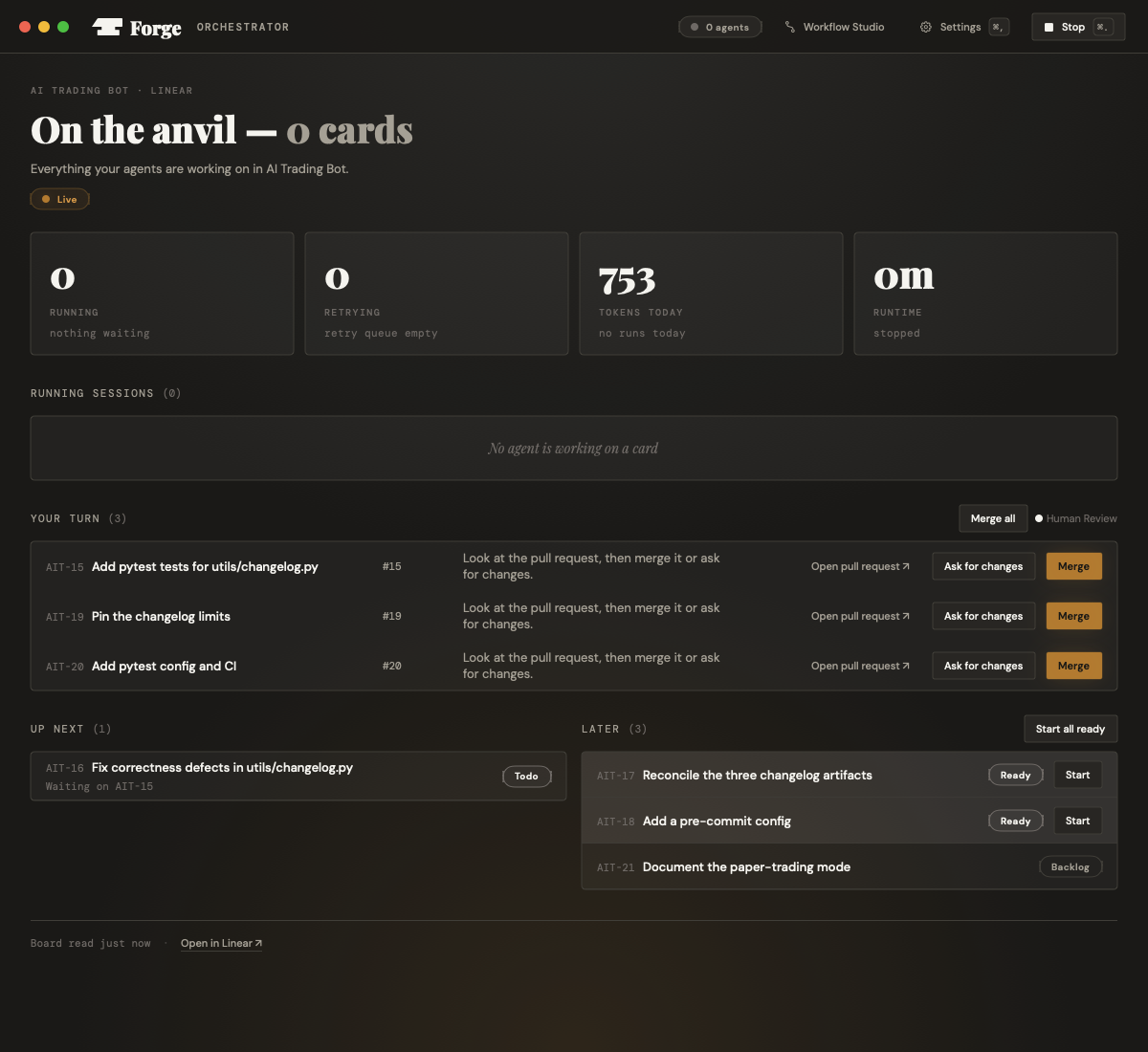
The main screen: everything your agents are working on right now. Four numbers up top: running, retrying, tokens today, runtime. Open a running session to follow an agent line by line. Start and Stop are always in reach.
Your turn
Pull requests waiting for you. Open the pull request, ask for changes, or Merge. Merge all when several wait. Up next and Later hold what comes after, with Start and Start all ready.
A card in progress
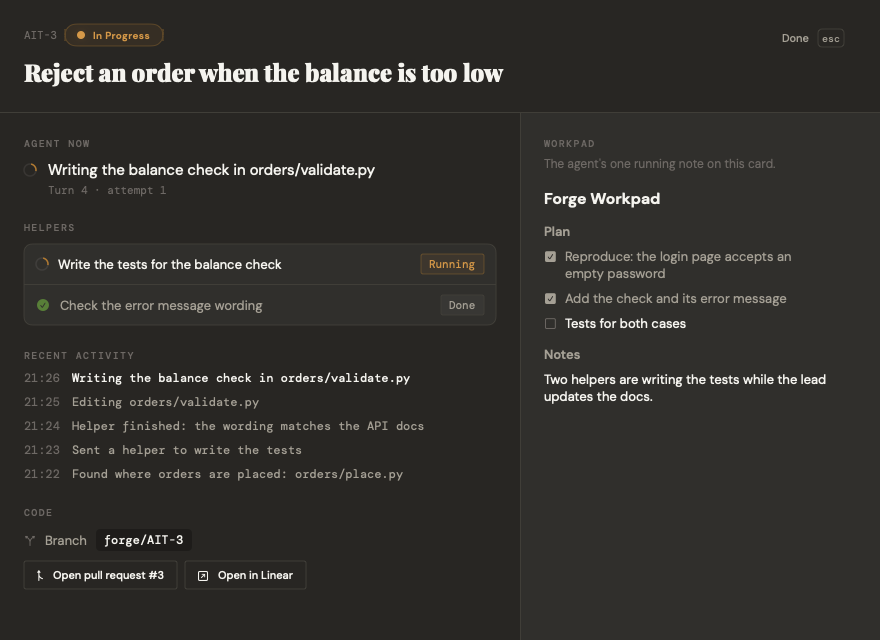
What the agent is doing now, the helpers it sent, recent activity, its running notes (the workpad), the branch, and links to the pull request and the card.
Workflow Studio
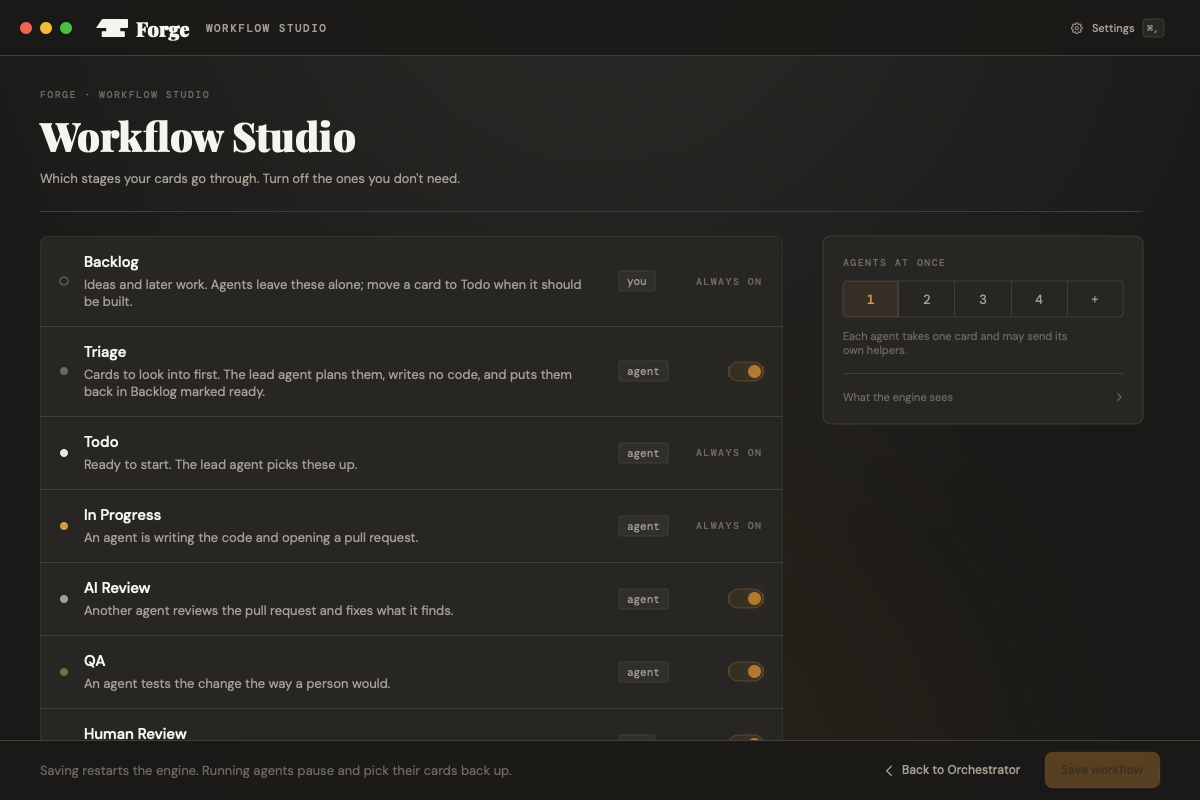
Turn the optional stages on or off: Triage, AI Review, QA, Human Review, Merging. Set how many agents work at once.
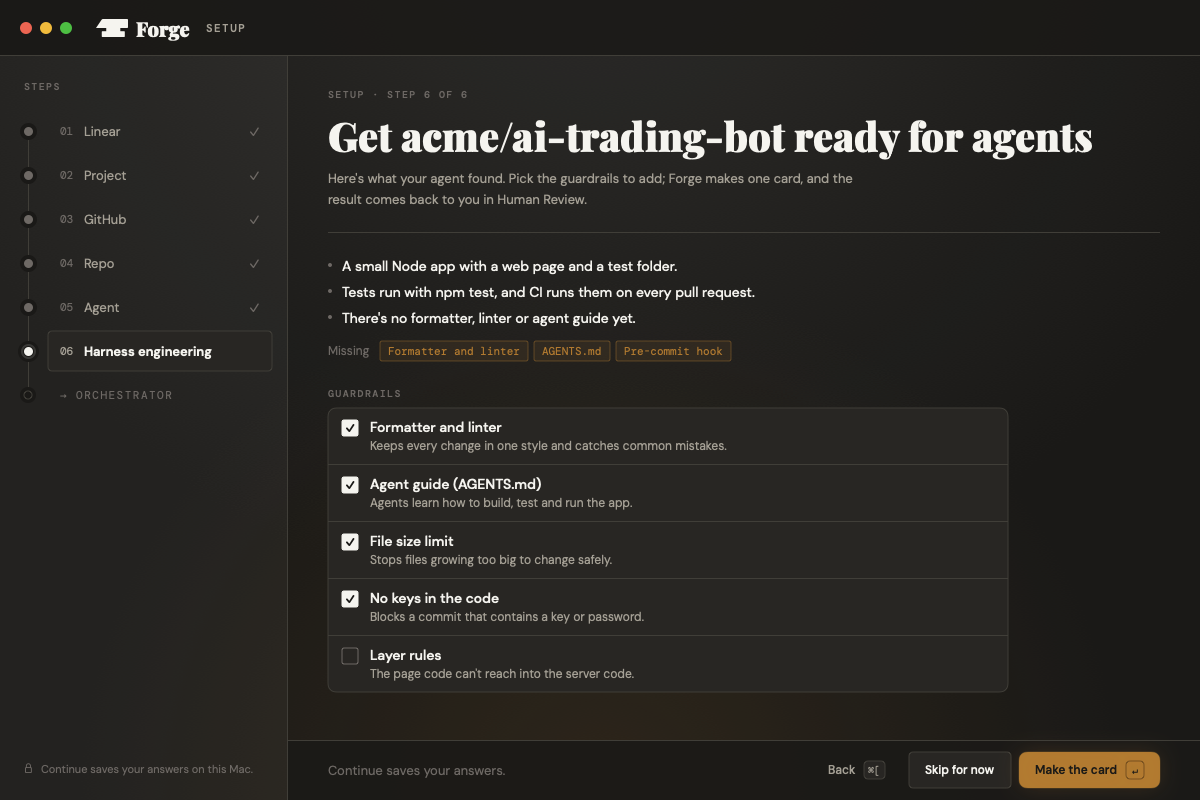
Harness engineering
The last setup step. The agent reads your repo and suggests guardrails: a formatter, a linter, an agent guide, a file size limit, no keys in the code. Tick the ones you want. Forge makes one card for them, and it comes back to you as a pull request.
On your Mac, under your name.
A native Mac app
Never a browser page.
Keys in your Keychain
Keys live in your Mac's Keychain, nowhere else.
Your name on the commits
Commits go out under your name, signed, the way you chose in setup. Forge never changes your tracker without asking first.
Gets you unstuck by itself
If an agent's sign-in runs out, Forge notices and opens the sign-in for you. A failed check always shows the one button that fixes it.
Your tracker. Your intelligence provider.
The cards live in your tracker. The intelligence provider does the work.
- LinearPaste your key once.
- BasecampA project's card table. Approve a short code in your browser.
- GitHub IssuesA GitHub project whose Status field holds the columns. Approve a short code in your browser.
Forge offers to add any missing columns.
- Claude CodeYour Pro or Max plan, or an API key.
- CodexBrowser sign-in or an OpenAI key.
- KimiA Moonshot key.
- OpenRouterAn OpenRouter key.
Each keeps as many accounts as you like. Switch one project to your work account without signing out of your own. Your own Claude Code and Codex logins stay as they are.
What you need
- A Mac with Apple Silicon and macOS 14 or newer
- The GitHub CLI (
gh) on the Mac - A tracker: Linear, Basecamp or GitHub Issues
- One intelligence provider
How to start
- 01Download Forge.dmg.
- 02Drag Forge to Applications.
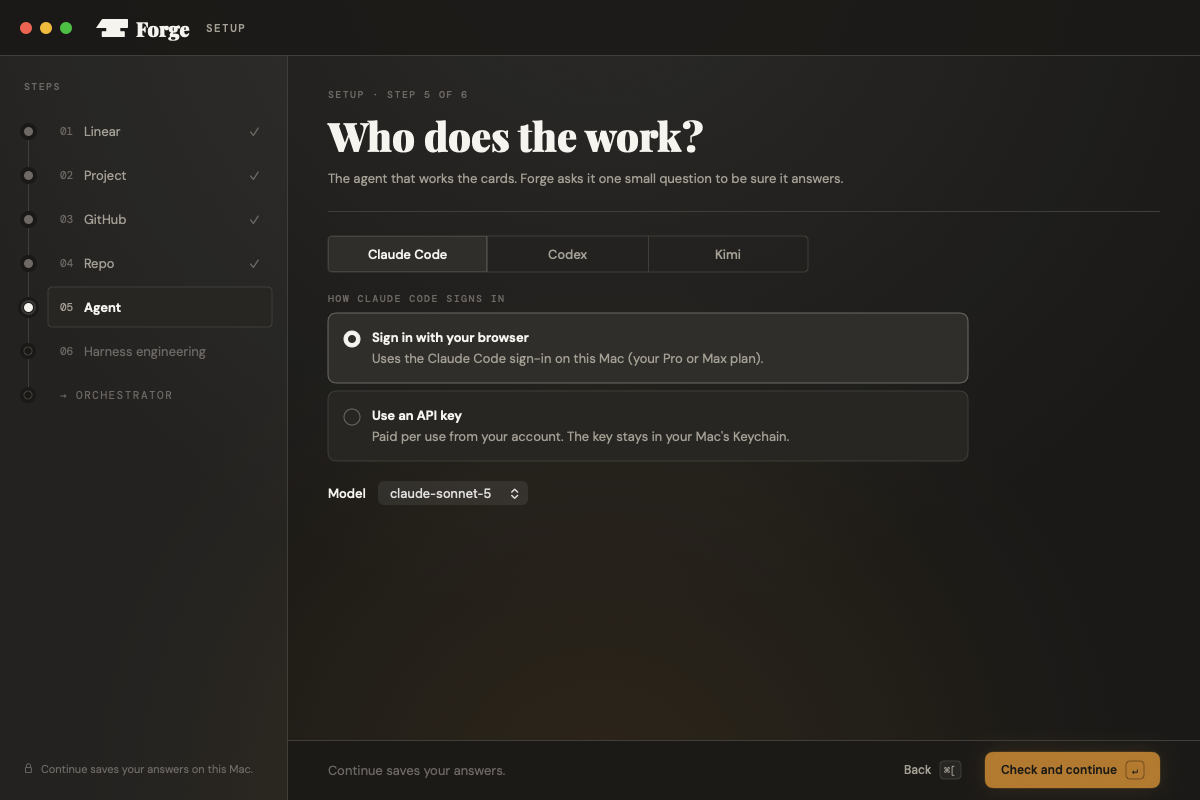
- 03Follow the six setup screens: tracker, project, GitHub and who signs the commits, repo, intelligence provider, Harness engineering.
Forge saves each answer, so you can quit and pick up where you left off.
Forge updates itself. It offers each new release, checks its signature, lets running agents wrap up, then swaps the app and reopens it.